
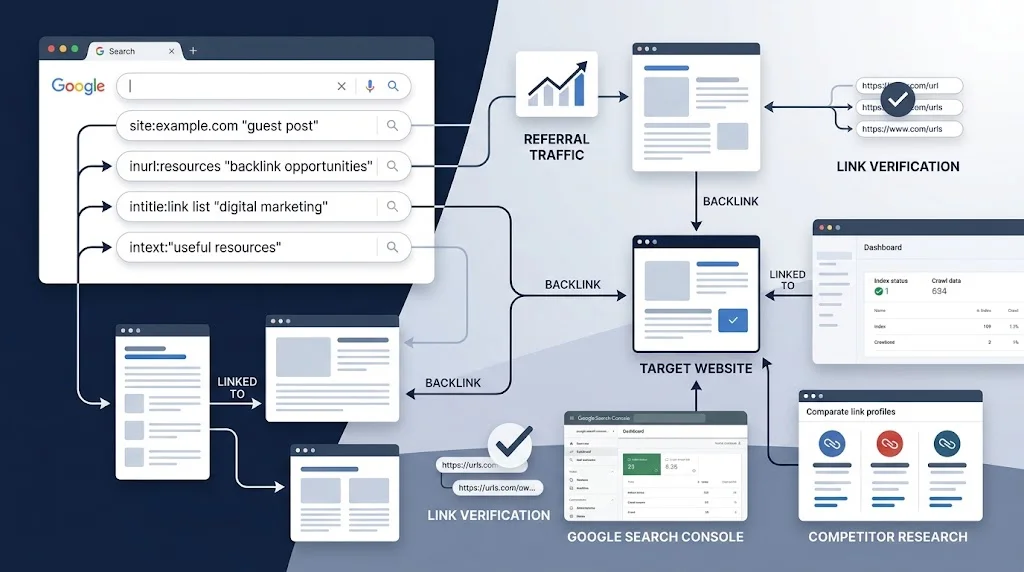
Finding backlinks through Google Search is useful when you want to discover websites, pages, mentions, resource lists, and link opportunities without relying entirely on a paid backlink database.
But there is an important distinction: a Google search result is not automatically a backlink.
A page may mention your brand without linking to you. A page may rank for a relevant topic but never mention your website. A competitor may appear on a resource page that you could potentially qualify for. And some links that Google has discovered may not appear in ordinary search results at all.
That is why effective backlink research needs more than one search query.
This guide uses a practical process:
Search → Filter → Inspect → Verify → Record → Act
You will learn how to use Google Search operators, investigate competitor backlinks, find unlinked mentions, identify resource-page opportunities, verify whether a discovered page actually contains a link, and combine Google Search with Google Search Console and Google Analytics 4.
For a broader overview of backlink discovery, see our guide to finding backlinks through Google and other Google-based methods.
Can You Find Backlinks Using Google Search?
Yes, but Google Search should be treated primarily as a discovery and research tool, not as a complete backlink database.
Google Search can help you find:
- Pages that mention your brand
- Resource pages
- Industry directories
- Lists and roundups
- Guest contribution pages
- Competitor mentions
- Pages that may contain links to competitors
- Relevant websites where a backlink could potentially be earned
- Unlinked brand or company mentions
- Specific types of pages using search operators
However, finding a page in Google does not prove that it links to your website.
The verification step matters.
For example, suppose you search:
"yourbrand.com"
You might discover a page that mentions your domain. You then need to open the page and determine:
- Does the page actually exist?
- Does it mention your brand or website?
- Is there a clickable link?
- Does the link point to the correct URL?
- Is the link relevant to the surrounding content?
- Is the page a legitimate editorial or useful resource?
- Is the opportunity worth pursuing?
That distinction prevents one of the most common backlink-research mistakes: counting mentions as backlinks.
Google Search vs Search Console vs GA4
Before using any operators, understand what each Google product is actually useful for.
| Tool | Main purpose in backlink research |
|---|---|
| Google Search | Discover pages, mentions, websites and potential opportunities |
| Google Search Console | Review Google’s reported external links to your verified site |
| Google Analytics 4 | Identify referral traffic from websites that send visitors |
| Manual inspection | Confirm whether a discovered page actually links to you |
These tools answer different questions.
Google Search: “Where might relevant pages or mentions exist?”
Search Console: “Which external links does Google currently report for my site?”
GA4: “Which external sources are actually sending visitors?”
Using all three gives you a much more useful picture than treating a search result as proof of a backlink.
How to Check Backlinks in Google Search Console
If you own the website, Search Console should be part of your backlink research process.
Open your property in Google Search Console, then go to:
Links → External links
The Links report can show:
- Top linking sites
- Top linked pages
- Top linking text
- Linking pages and target URLs in relevant views
Google also allows you to drill into a specific linking site or target page to investigate the relationship between them.
A practical workflow
Start with:
Links → External links → Top linking sites
Look for domains that link to your site.
Then investigate:
Top linked pages
This tells you which pages on your website are receiving links.
You can then examine a particular site and page combination to understand where the relationship exists.
This is especially useful when you want to answer questions such as:
- Which websites are already linking to us?
- Which pages attract the most backlinks?
- Which websites link to a specific article?
- Are important pages receiving external links?
- Which linking domains deserve further investigation?
Export the data
Search Console also provides export functionality for link data. Google documents exports for link reports, including latest links and other link samples.
Export the data when you want to combine it with your Google Search research.
For example, create a spreadsheet with:
| Source | Source URL | Target URL | Type | Verified? | Opportunity |
|---|---|---|---|---|---|
| Example Site | Page URL | Your Article | Existing backlink | Yes | Monitor |
| Resource Site | Page URL | — | Potential opportunity | No | Review |
| Industry Blog | Page URL | Competitor | Competitor link | Yes | Prospect |
Important Search Console limitation
Do not treat the Links report as a complete list of every backlink.
Google explicitly states that the report is not comprehensive and provides a sample of known links. Tables can also be limited, particularly on larger sites.
That is why Search Console should complement, rather than replace, other research methods.
The Most Useful Google Search Operators for Backlink Research
Google officially documents several search operators, including site: and filetype:. Search operators can help narrow results, but they are still affected by Google’s indexing and retrieval systems.
The following operators are especially useful for backlink research.
1. Exact-phrase searches
Use quotation marks to search for an exact phrase.
"your brand name"
Or:
"yourbrand.com"
This can uncover pages mentioning your business or domain.
What to do next
Do not immediately record the result as a backlink.
Open the page and check whether the mention contains an actual hyperlink.
If it does not, classify it as an unlinked mention rather than a backlink.
2. Exclude your own website with -site:
Combine an exact phrase with a site exclusion:
"your brand" -site:yourdomain.com
This can remove many results from your own domain and focus the research on external websites.
For example:
"guest posting" -site:getguestposts.com
This is useful when researching mentions or discussions outside your own website.
3. Search a specific domain with site:
The site: operator restricts results to a particular domain, URL, or URL prefix.
Example:
site:example.com "SEO"
Or:
site:example.com "guest posting"
This is useful for investigating a competitor, publication, industry website, or potential referring domain.
You can use it to determine whether a particular website has pages relevant to your topic.
4. Use inurl: to find specific page types
inurl: can help locate pages with particular words in their URLs.
Examples:
inurl:resources "SEO"
inurl:links "digital marketing"
inurl:guest-post "SEO"
For competitor research:
site:competitor.com inurl:resources
This can help you identify resource sections that deserve manual inspection.
5. Use intitle: to find resource pages
The intitle: operator can narrow results based on words appearing in page titles.
Examples:
intitle:"SEO resources"
intitle:"useful websites" "SEO"
intitle:"resources" "link building"
You can combine it with a domain:
site:example.com intitle:"SEO resources"
The important point is that the operator helps you discover candidate pages. It does not prove that the page links to you.
6. Use intext: to find contextual mentions
The intext: operator can help locate pages containing a specific term in their visible text.
Examples:
intext:"your brand"
intext:"yourbrand.com"
For competitor research:
intext:"competitor.com" -site:competitor.com
This can help uncover external pages where a competitor’s domain or brand appears.
You can also combine it with other operators:
site:example.com intext:"SEO"
or:
inurl:resources intext:"SEO"
Again, inspect the actual page before classifying the result.
Combine Search Operators Instead of Using Them in Isolation
Individual operators are useful, but combinations often make the research more practical.
For example:
site:example.org inurl:resources "SEO"
This asks Google to surface pages on a particular domain where the URL suggests a resource section and the page is related to SEO.
Another example:
site:example.org intitle:"SEO resources"
Or:
"competitor.com" -site:competitor.com "resources"
Or:
"competitor brand" -site:competitor.com
These searches do not reveal a perfect backlink database. Their value comes from helping you reduce a large web search into a smaller set of pages worth inspecting.
Search for Unlinked Brand Mentions
Unlinked mentions can be useful because the website already references your brand.
Start with:
"your brand" -site:yourdomain.com
Then open relevant results.
Check whether the brand name is:
- Plain text
- Linked to your homepage
- Linked to another page
- Linked to an outdated URL
- Mentioned in an image or document
- Mentioned in a context where a useful resource could be added
Turn a mention into an opportunity
Suppose a website says:
Your Brand publishes SEO resources for website owners.
If “Your Brand” is plain text, you may have a potential outreach opportunity.
But do not assume the webmaster should add a link.
First ask:
Would a link genuinely improve the page for its readers?
That is a much stronger basis for outreach than simply asking every website that mentions your brand to add a backlink.
Find Pages That Mention a Specific URL
You can also search for a URL or recognizable part of it.
For example:
"example.com/seo-guide"
or:
"example.com" "SEO guide"
This can help discover pages that reference a specific resource.
If the page mentions the resource but does not link to it, classify it as a possible unlinked mention.
If it links to the resource, record the source URL and target URL separately.
How to Find Competitor Backlinks Using Google Search
Google Search can also help with competitor backlink research.
But instead of trying to discover every backlink a competitor has, use Google to identify repeatable sources and link opportunities.
Start with three to five relevant search competitors.
For each competitor, investigate:
- Brand mentions
- Domain mentions
- Resource pages
- Guest contributions
- Industry lists
- Roundups
- Guides
- Tutorials
- Directories
- Partner pages
- Relevant statistics or research pages
For example:
"competitor.com" -site:competitor.com
Then:
"competitor brand" -site:competitor.com
And:
"competitor.com" intitle:resources
You can also investigate specific types of pages:
"competitor.com" inurl:resources
The goal is not to copy every link.
The goal is to discover why the competitor was mentioned or linked.
Build a Competitor Link-Gap List
A simple competitor link-gap workflow looks like this:
Step 1: Choose relevant competitors
Do not choose competitors simply because they have a large backlink profile.
Choose websites that compete with you for similar topics, audiences, or search results.
Step 2: Find external pages mentioning them
Use searches such as:
"competitor.com" -site:competitor.com
Step 3: Inspect the pages
Determine whether the competitor is:
- Linked
- Mentioned without a link
- Included in a list
- Cited as a source
- Included in a resource section
- Mentioned as an example
- Featured in an article
Step 4: Understand the reason for the link
This is the part that is often missing from basic backlink guides.
Ask:
Why did this page link to the competitor?
Possible reasons include:
- The competitor created an original study
- It provided a useful tool
- It published a detailed guide
- It supplied an expert quote
- It was included in a resource list
- The page referenced a company or product
- The competitor contributed an article
- The site had an existing relationship with the publisher
Step 5: Compare your content
Now ask:
Do I have something genuinely useful enough to replace, supplement, or earn a similar mention?
If not, create or improve the asset first.
This turns competitor backlink research into a content and outreach research process, rather than a simple copying exercise.
Find Common Referring Opportunities Across Competitors
The strongest competitor research often comes from patterns.
Suppose you investigate three competitors and repeatedly discover the same website linking to all of them.
That website becomes more interesting because you have evidence that it already publishes content related to your topic.
Record:
| Website | Competitor A | Competitor B | Competitor C | Relevant to Us? | Action |
|---|---|---|---|---|---|
| Example A | Yes | Yes | No | Yes | Review |
| Example B | Yes | Yes | Yes | Yes | Prioritize |
| Example C | No | Yes | No | Maybe | Inspect |
This does not mean the common site will link to you.
It means the site has demonstrated some level of topical or editorial overlap that may justify further research.
Find Resource Pages
Resource pages can sometimes be discovered with combinations such as:
intitle:"SEO resources"
intitle:"SEO links"
inurl:resources "SEO"
inurl:links "SEO"
You can narrow them further:
intitle:"SEO resources" "content marketing"
Once you find a potential resource page, inspect:
- What types of resources are included?
- Are external websites actually linked?
- Is the page maintained?
- Is your topic relevant?
- What standards appear to determine inclusion?
- Would your resource add something useful?
A resource page is an opportunity only when your content fits its purpose.
Find Guest Contribution Opportunities
Google Search can also help identify websites that publish contributions.
Try searches such as:
"write for us" SEO
"guest post" "SEO"
"contribute an article" marketing
"inurl:guest-post" SEO
But do not assume that every page advertising guest posts is worth pursuing.
Evaluate:
- Topical relevance
- Editorial quality
- Existing content
- Author transparency
- Link practices
- Whether articles provide genuine value
- Whether the website appears to publish excessive low-quality submissions
The objective should be relevant editorial exposure, not simply collecting links.
Find Potential Broken-Link Opportunities
Broken-link research requires more verification than a simple Google query.
You can use Google to discover likely resource pages:
inurl:resources "SEO"
or:
intitle:"SEO resources"
Then inspect the actual page.
Look for:
- External resources
- Links that no longer work
- Pages that have moved
- Outdated references
- Missing or unavailable resources
If you find a dead link, check what the original resource was about.
Only suggest your own page as a replacement if it genuinely satisfies the same informational need.
This is important because a broken link is not automatically an outreach opportunity.
Search for Industry Lists and Roundups
Some websites publish lists such as:
- SEO tools
- Marketing resources
- Industry websites
- Business blogs
- Useful websites
- Recommended resources
- Educational resources
Try:
intitle:"SEO tools" "resources"
intitle:"best SEO resources"
"SEO websites" "resources"
Then inspect whether the page actually links to the websites it discusses.
A page containing a list is useful only if the list has a genuine editorial purpose and your resource is relevant.
Use filetype: for Research
Google’s filetype: operator can locate particular file formats.
For example:
filetype:pdf "SEO guide"
or:
filetype:pdf "digital marketing" "resources"
This can uncover:
- Industry reports
- Research documents
- Guides
- Educational resources
- Conference materials
PDF research is generally a secondary backlink-discovery method, so it should not replace normal page-level investigation.
Don’t Rely on the Old link: Operator
You may still see older backlink tutorials recommending:
link:example.com
Do not build your backlink research strategy around this operator.
Modern Google Search should instead be used through searches involving:
- Brand names
- Domains
- Exact phrases
site:inurl:intitle:intext:- Relevant page types
- Competitor research
Most importantly, use Search Console for Google’s reported links to your own verified property and manual inspection for confirmation.
How to Verify Whether a Search Result Is Actually a Backlink
This is the most important part of the process.
Finding a page is only discovery.
Verification happens after opening the page.
Check 1: Is the page live?
A search result may point to a page that has changed, moved, or disappeared.
Check 2: Does the page mention your site?
Search within the page for:
- Brand name
- Domain
- Page title
- URL
- Author name
Check 3: Is the mention actually linked?
A visible domain is not necessarily a hyperlink.
Check 4: Where does the link point?
The link might point to:
- Homepage
- Blog
- Specific article
- Old URL
- Redirect
- Unrelated page
Record the actual target.
Check 5: What is the surrounding context?
A relevant contextual link is different from a random footer, author-box, or directory listing.
Check 6: Is the page worth pursuing?
Consider:
- Relevance
- Editorial context
- Usefulness to readers
- Page quality
- Existing link patterns
- Whether your resource genuinely fits
This produces a much cleaner backlink dataset.
Mention vs Backlink: Don’t Mix Them
Use separate classifications.
| Finding | What it means |
|---|---|
| Brand mention | Your brand appears without a confirmed link |
| Backlink | An external page contains a link to your site |
| Potential backlink | A relevant page may provide an opportunity but no link exists yet |
| Competitor backlink | An external page links to a competitor |
| Referral source | A website sends measurable visitors to your site |
| Verified opportunity | You inspected the page and identified a legitimate reason for outreach |
This classification prevents inflated backlink counts.
Google Search vs Search Console: Which Should You Use?
They serve different purposes.
| Task | Google Search | Search Console |
|---|---|---|
| Find brand mentions | Yes | No |
| Find potential resource pages | Yes | No |
| Research competitors | Yes | No |
| Find your reported backlinks | Limited | Yes |
| See top linking sites | No | Yes |
| See top linked pages | No | Yes |
| Export Google’s link data | No | Yes |
| Discover unlinked mentions | Yes | No |
| Verify an individual page manually | Yes | Yes, for reported data |
| Get complete backlink coverage | No | No |
Search Console is especially valuable because it is connected to your verified site property, but Google states that its Links report is not a comprehensive list of every link.
Google Search fills a different gap: discovering pages and opportunities outside the backlink data you already have.
Add Google Analytics 4 to Find Useful Referral Sources
A backlink can exist without sending meaningful traffic.
That is why GA4 can add another layer of research.
If a website sends visitors to your site, investigate that referral source.
A simple process is:
Referral source → Landing page → Source page → Backlink verification
For example, if GA4 shows traffic from:
example.com
you can investigate the relevant source page and determine:
- Where visitors came from
- Which landing page they reached
- Whether an actual backlink exists
- Whether the link is still live
- Whether the referring page is relevant
For a detailed explanation of this process, see our guide to using GA4 to investigate backlink-related referral traffic.
Create a Backlink Research Spreadsheet
Do not keep your research only in browser tabs.
Create a simple spreadsheet with fields such as:
| Field | Purpose |
|---|---|
| Source domain | Website containing the page |
| Source URL | Exact page being investigated |
| Target URL | Your page or competitor’s page |
| Brand/Domain | What was discovered |
| Link status | Linked / unlinked / unknown |
| Opportunity type | Resource / mention / guest post / competitor |
| Relevance | High / Medium / Low |
| Context | Why the page matters |
| Action | Monitor / outreach / content improvement |
| Date checked | Keeps research current |
This turns scattered Google results into an actionable prospect database.
How to Prioritize the Opportunities
Do not prioritize opportunities simply because a website looks powerful.
Instead, examine the relationship between:
Relevance + Context + Editorial Fit + Potential User Value
For example:
High-priority research candidate
A relevant industry website has a resource page that already links to several comparable resources, and your existing guide fills a clear content gap.
Lower-priority candidate
A completely unrelated website mentions your brand once but has no obvious reason to link to your content.
This approach makes backlink research more realistic and reduces wasted outreach.
A Better Way to Analyze Competitor Links
When you find a competitor backlink, do not immediately ask:
“How can I get the same link?”
Ask three better questions:
1. Why did they receive the link?
Was it because of:
- Research?
- Original data?
- A useful guide?
- A tool?
- Expert commentary?
- A guest contribution?
- A resource list?
- A partnership?
2. What asset earned it?
Identify the competitor’s actual page.
It may be a:
- Guide
- Calculator
- Research report
- Template
- Tutorial
- Statistics page
- Original study
3. Can you create a genuinely useful alternative?
If your page is weaker, improve it first.
If your page covers a different aspect, position it accordingly.
If you have nothing useful to offer, do not treat the competitor’s backlink as an automatic outreach target.
This is where backlink research becomes useful for content strategy, not just link acquisition.
Common Mistakes When Finding Backlinks in Google
Mistake 1: Treating search results as backlinks
A search result only proves Google found the page.
It does not prove the page links to you.
Mistake 2: Counting brand mentions as links
A mention without a hyperlink is not a confirmed backlink.
Mistake 3: Assuming every competitor mention is a link
Inspect the page.
Mistake 4: Using only one search query
Different query patterns reveal different types of pages.
Mistake 5: Ignoring intext:
Brand and domain mentions can be easier to investigate when contextual text is part of the query.
Mistake 6: Using site: without a research purpose
A site: query is useful when you already know which domain or page type you want to investigate.
Mistake 7: Treating Search Console as a complete backlink database
Google explicitly says its Links report is not comprehensive.
Mistake 8: Copying competitor link targets blindly
A competitor’s link may exist because of an asset, relationship, contribution, or editorial reason that does not apply to your website.
Mistake 9: Ignoring the source page
The domain alone does not tell you why the link exists.
Mistake 10: Recording opportunities without verification
A research spreadsheet filled with unverified URLs quickly becomes difficult to use.

A Practical Backlink Discovery Workflow
Here is a repeatable process you can use for a new website.
Step 1: Start with your own brand
Search:
"your brand" -site:yourdomain.com
Record relevant external mentions.
Step 2: Search your domain
"yourdomain.com" -site:yourdomain.com
Inspect the results manually.
Step 3: Check Search Console
Open:
Links → External links
Review top linking sites and top linked pages, then export the data when needed.
Step 4: Choose three to five competitors
Focus on genuine search competitors.
Step 5: Research competitor mentions
Use:
"competitor.com" -site:competitor.com
and:
"competitor brand" -site:competitor.com
Step 6: Search for resource opportunities
Use combinations such as:
intitle:"resources" "your topic"
inurl:resources "your topic"
Step 7: Investigate relevant pages
Open each candidate and inspect the actual content.
Step 8: Verify the link
Determine whether the page contains:
- A backlink
- An unlinked mention
- A competitor link
- No useful connection
Step 9: Understand the reason
Identify what caused the link or mention.
Step 10: Record everything
Add verified findings to your spreadsheet.
Step 11: Decide the appropriate action
Possible actions include:
- Improve an existing resource
- Create a missing resource
- Contact the publisher
- Pursue a legitimate contribution
- Request correction of an outdated URL
- Monitor the opportunity
- Do nothing
This final step is important because not every discovered page needs outreach.
Google Backlink Search Query Cheat Sheet
| Goal | Example query |
|---|---|
| Find brand mentions | "your brand" |
| Exclude your website | "your brand" -site:yourdomain.com |
| Find domain mentions | "yourdomain.com" -site:yourdomain.com |
| Search a specific site | site:example.com SEO |
| Find resource URLs | inurl:resources SEO |
| Find resource titles | intitle:"SEO resources" |
| Find contextual mentions | intext:"your brand" |
| Find competitor mentions | "competitor.com" -site:competitor.com |
| Find competitor resources | "competitor.com" inurl:resources |
| Find guest contribution pages | "write for us" SEO |
| Find PDFs | filetype:pdf "SEO guide" |
| Combine operators | site:example.com inurl:resources "SEO" |
Use these as starting points rather than rigid formulas. Search results change according to Google’s indexing and retrieval systems, so every result still requires inspection.
How to Make Google Backlink Research More Accurate
Use these principles throughout your research:
Separate discovery from verification
Finding a page is one step.
Confirming the backlink is another.
Record source and target separately
A backlink has both:
- A source page
- A target page
Keeping both makes later analysis much easier.
Investigate context
A link’s surrounding content can explain why it exists.
Compare competitors systematically
Use the same search process for each competitor instead of collecting random examples.
Combine data sources
Google Search, Search Console, GA4, and manual inspection answer different questions.
Keep your research date
Backlink situations change.
A page that links to a competitor today may be updated or removed later.
Do not chase every link
The purpose of research is to identify relevant opportunities, not to create the longest possible prospect list.
What Google Search Can and Cannot Tell You
Google Search can help you:
- Discover external pages
- Find brand mentions
- Research competitor mentions
- Find potential resource pages
- Locate relevant directories and lists
- Investigate guest contribution opportunities
- Discover pages worth manually inspecting
- Find potential broken-link opportunities
Google Search cannot reliably tell you:
- The complete backlink profile of a website
- Whether every search result contains a backlink
- Whether a link is still live without visiting the page
- Whether every discovered link is valuable
- Why a competitor received a particular link
- Whether a website will accept your outreach
That distinction is what makes manual verification essential.
Final Backlink Verification Checklist
Before adding a finding to your confirmed backlink list, ask:
- Is the source page live?
- Is it outside my website?
- Does it mention my brand, domain, or page?
- Is there an actual clickable link?
- Does the link point to the expected target?
- Is the surrounding content relevant?
- Is the source page useful to its audience?
- Is the link still active?
- Is this a confirmed backlink or only a potential opportunity?
- Have I recorded the source and target URLs?
If you cannot confirm the link, label it unverified rather than calling it a backlink.
Frequently Asked Questions
Can Google Search show all backlinks to a website?
No. Google Search is useful for discovering pages and mentions, but it should not be treated as a complete backlink database. For your own verified website, Search Console provides a dedicated Links report, but Google also states that this report is not comprehensive.
What is the best Google operator for finding backlinks?
There is no single operator that reveals all backlinks. Combinations of exact phrases, site:, inurl:, intitle:, and intext: can help discover relevant pages, but the results need manual verification.
Can I find competitor backlinks with Google?
You can discover some competitor mentions and potential referring pages using Google Search. However, Google Search should not be treated as a complete competitor backlink database.
How do I know whether a Google result is actually a backlink?
Open the result and inspect the page. Confirm that an actual hyperlink points from the external page to your website or target URL.
Is a brand mention the same as a backlink?
No. A brand mention can exist without a hyperlink. It becomes a backlink only when the external page actually links to your website.
Does Search Console show every backlink?
No. Google’s documentation says the Links report is not a comprehensive list of every link and provides a sample of known links.
Should I use Google Search or Search Console for backlink research?
Use both for different purposes. Google Search is useful for discovering external pages and opportunities, while Search Console is useful for reviewing Google’s reported external links to your verified property.
Why should I use GA4 in backlink research?
GA4 can help identify websites that actually send referral traffic. This gives you another way to investigate whether an external source is generating visits, after which you can inspect the source page and verify the link.
Final Takeaway
Finding backlinks in Google is less about discovering one magic search command and more about building a reliable research process.
Use Google Search to discover, Search Console to review Google’s reported links, GA4 to investigate referral traffic, and manual inspection to verify what actually exists.
The most useful workflow is:
Search → Filter → Inspect → Verify → Record → Act
That approach helps you separate genuine backlinks from mentions, distinguish opportunities from confirmed links, understand why competitors earn certain links, and turn scattered Google results into a practical backlink research system.
The objective is not to collect the largest possible list of URLs.
It is to identify relevant, verifiable opportunities and understand the content or editorial reason behind them.